Chrome DevTool MCP Server best practices
This document explains the best practices you can do when using Chrome DevTool MCP server in StudioAssist.
Scenario:
Goal: Automatically generate Web Test Objects and reusable test cases for web applications with the Chrome DevTools MCP Server and Katalon StudioAssist, while seamlessly maintaining and updating them as UI changes occur.
Purpose and strategic value
Efficiency: The primary value is to save your time during the test automation process.
Key takeaways
-
The system enables various browser interactions such as clicking on elements, closing pages, dragging objects, and emulating features.
-
The MCP also allows you to get the stable and robust locators for your webpage, so that you can then use those locators to create objects in Katalon Studio.
-
It allows for the evaluation of JavaScript directly through the
evaluate_scripttool.
Requirements
Install Chrome DevTools MCP server
npm install -g chrome-devtools-mcp
Enable Chrome DevTools MCP Server listener
mcp-proxy chrome-devtools-mcp --port=8000 --stateless
Please note that if the port 8000 on your machine is already be in use. In such cases, you can specify a different port in the command, for example: 8001, 8002, and so on.
Add Chrome DevTools MCP Server to Katalon Studio
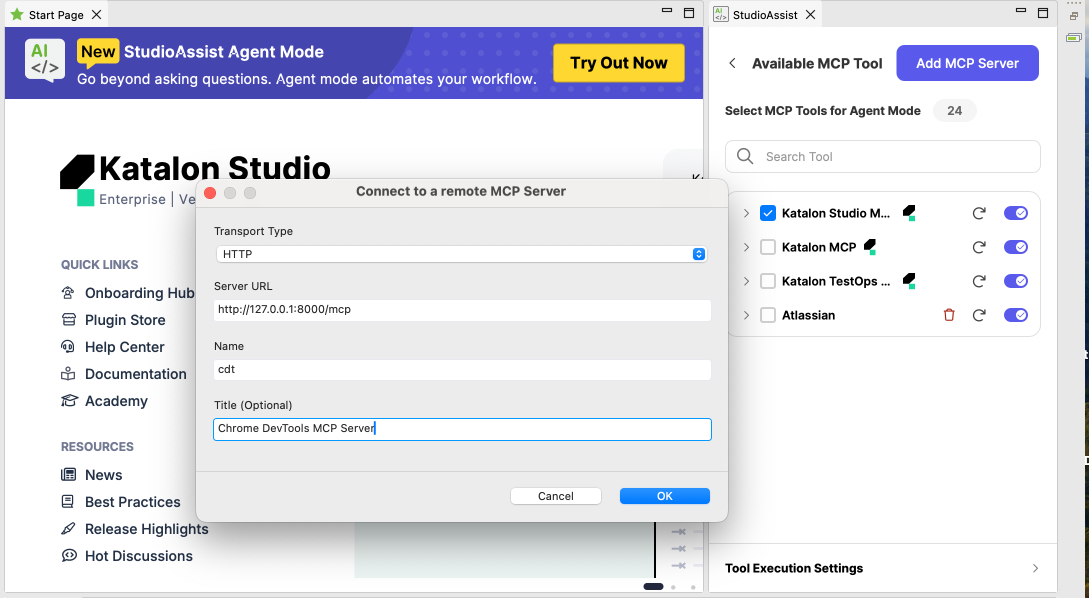
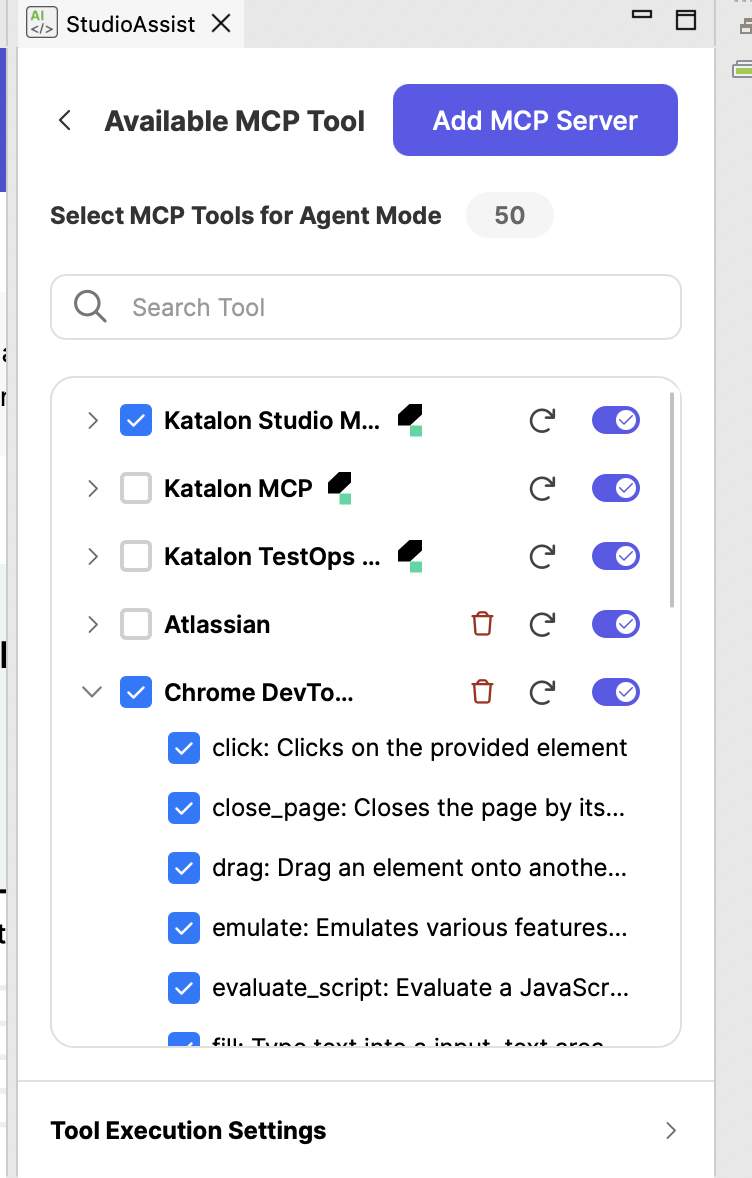
Best practices steps
Scenario 1: Obtain stable locators and create objects in Katalon Studio
Step 1: Prompt to detect objects
-
Select the MCP to be used: For example, you might start with: “Using the Chrome DevTools MCP, … actions”.
-
Specify a clear URL for the website you want to test.
-
Identify the position of the test objects on the webpage that you intend to capture.
You can try the prompt below:
Using the Chrome DevTools MCP, Access the https://automationexercise.com/login and capture all objects under Login to your account
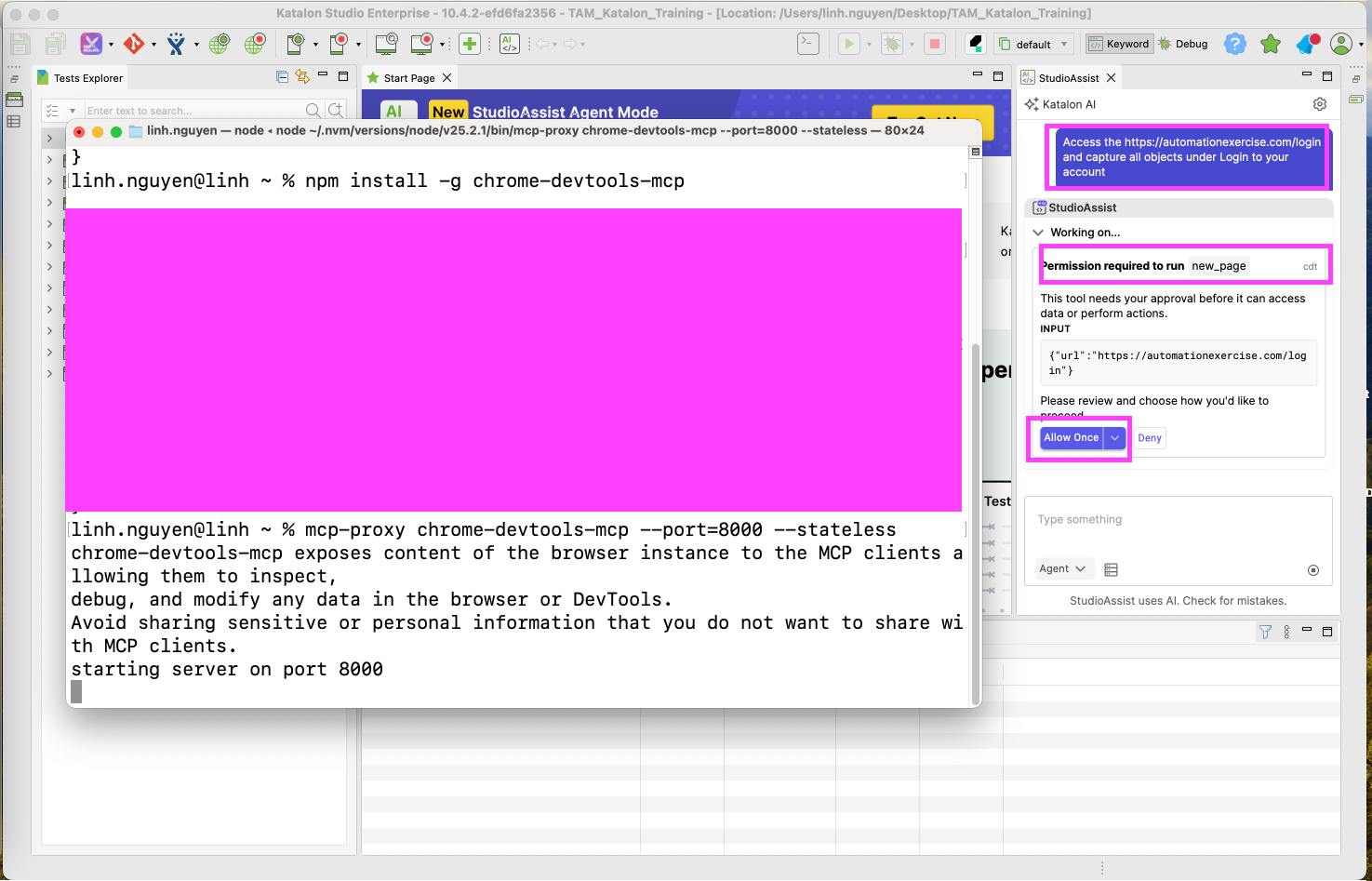
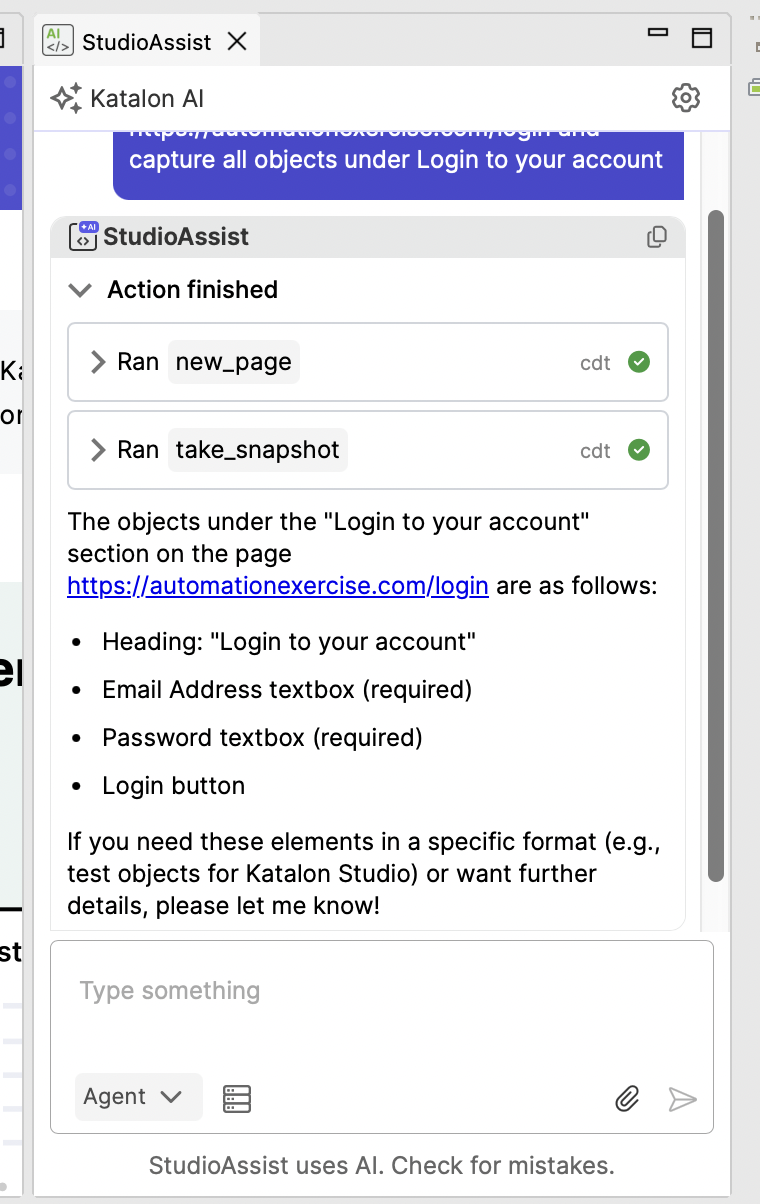
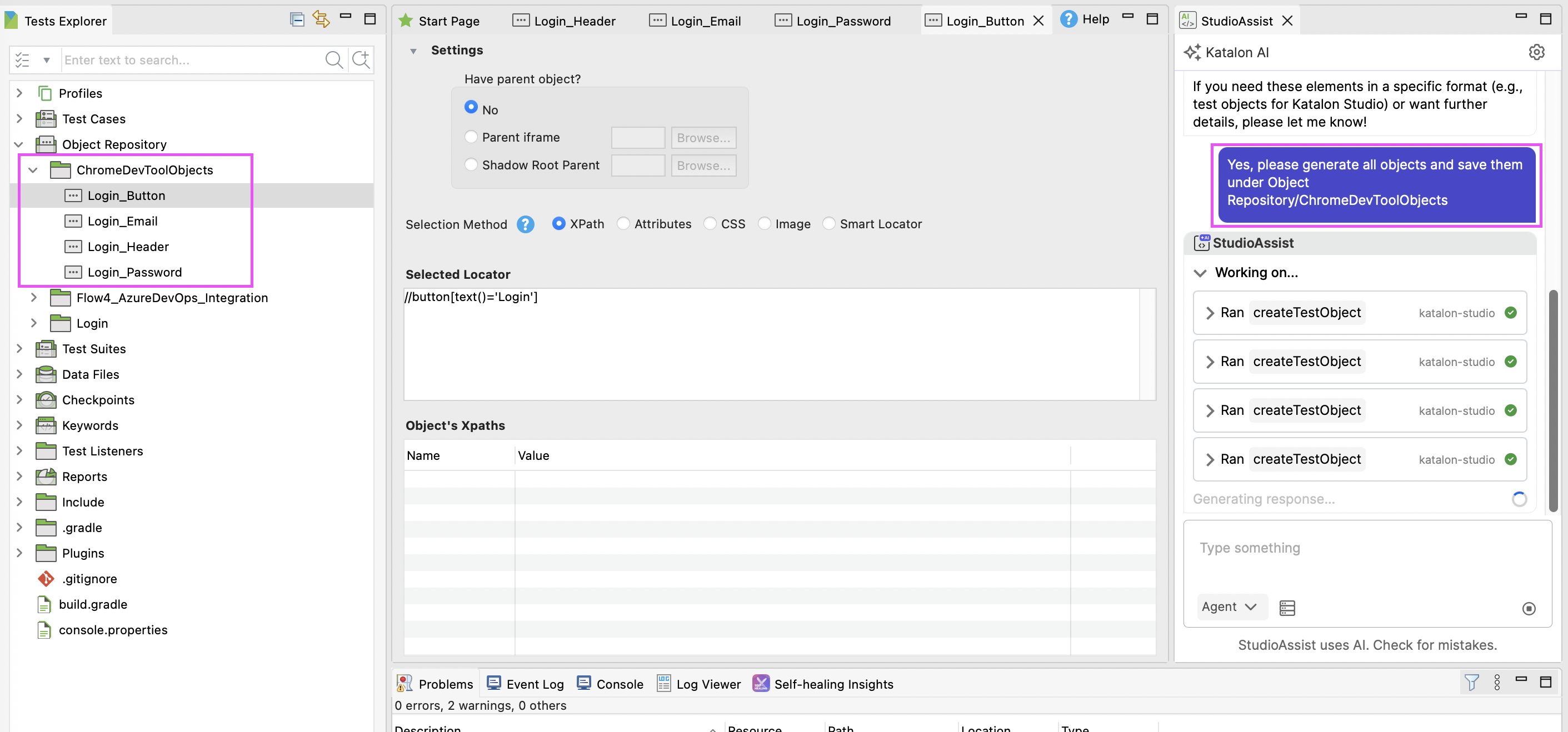
Step 2: Prompt to save objects
-
Add captured test objects to the Object Repository folder from the locators received from Chrome DevTools MCP
-
Specify a target location if you want to store the captured objects in a particular folder. For example, you can save them under:
Object Repository/ChromeDevToolObjects
You can try the prompt below:
Yes, please generate/create all objects for the above locators, and save them under Object Repository/ChromeDevToolObjects
Scenario 2: Capture Web test objects and generate the test case, end-to-end
Step 1: Record actions and capture object details
-
Execute the action on the target element.
-
Capture a snapshot of the page at the time of execution.
-
Capture and record the object locator details (XPath, CSS selector, or ID).
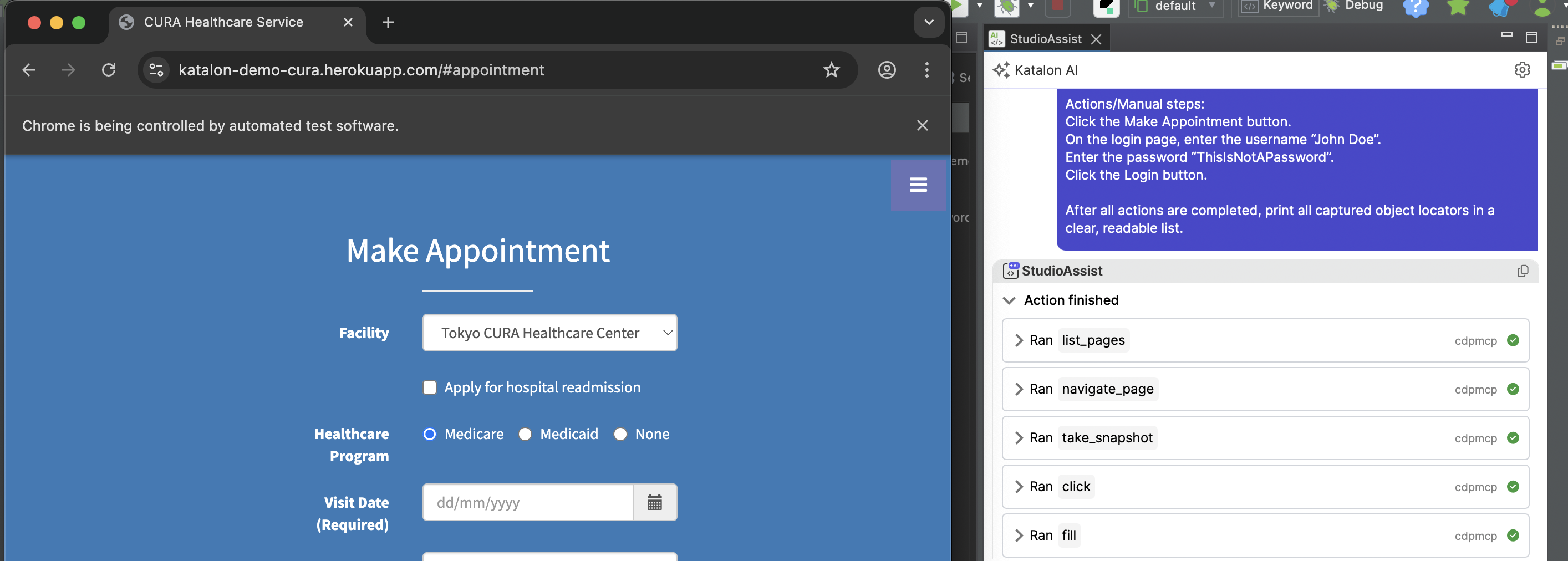
You can try the prompt below:
Use the Chrome DevTools MCP to perform the following actions on the web page:
https://katalon-demo-cura.herokuapp.com/

Perform the actions below in the given order. For each action:
Execute the action on the target element.
Capture a snapshot of the page at the time the action is performed.
Capture and record the object locator details (XPath, CSS selector, or ID) for the element involved.

Actions/Manual steps:
Click the Make Appointment button.
On the login page, enter the username “John Doe”.
Enter the password “ThisIsNotAPassword”.
Click the Login button.

After all actions are completed, print all captured object locators in a clear, readable list.
Step 2: Create Web test objects
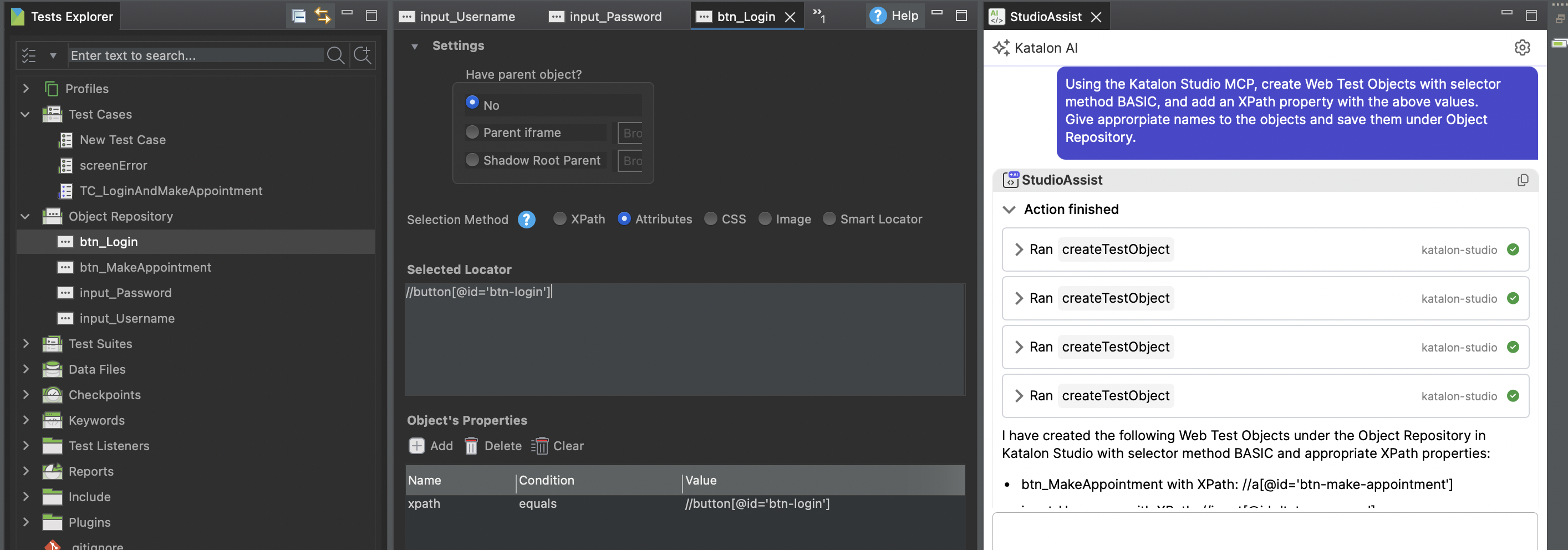
- Save the captured element locators permanently in Katalon Studio’s Object Repository, so they can be reused across multiple test cases instead of being re-identified or redefined each time.
You can try the prompt below:
Using the Katalon Studio MCP, create Web Test Objects with selector method BASIC, and add an XPath property with the above values.
Give approrpiate names to the objects and save them under Object Repository.
Step 3: Create a test case
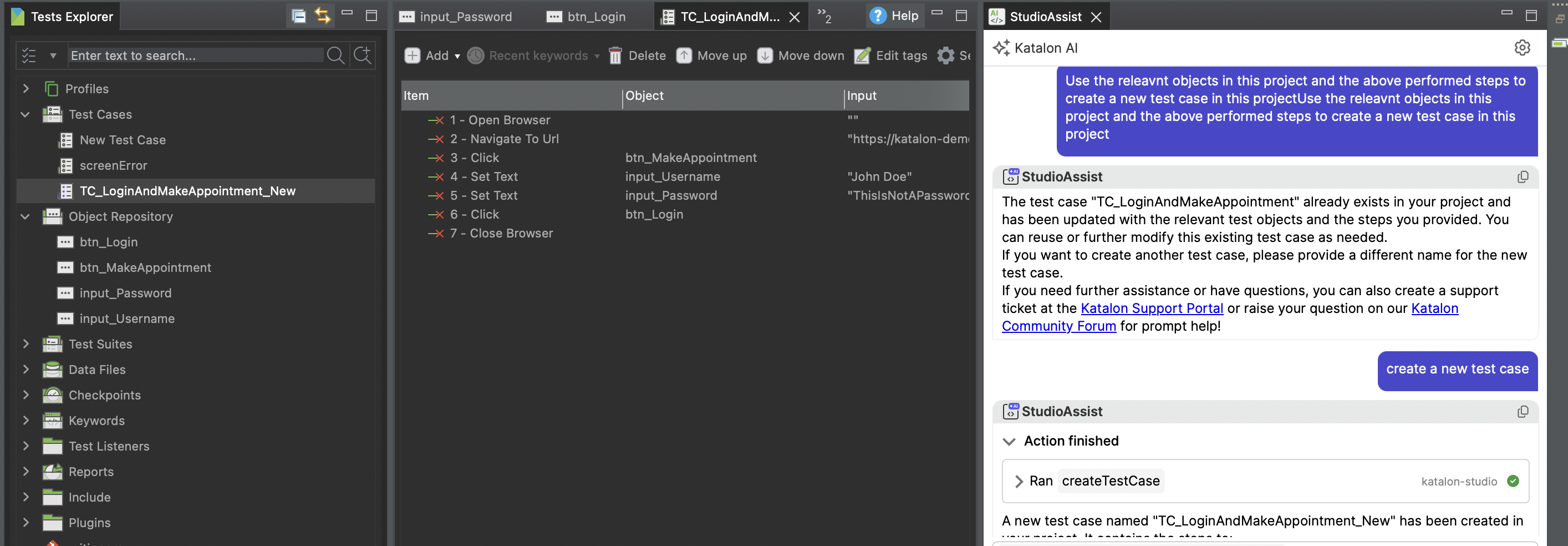
- Generate a reusable automated test using the newly created test objects.
You can try the prompt below:
Using the relevant test objects already created in this project, generate a new automated test case that contains the actions performed earlier.
Scenario 3: Maintain a test case after UI updates
Automatically detect changes in web element locators after UI updates, update test objects, and regenerate affected test cases to maintain regression suites efficiently.
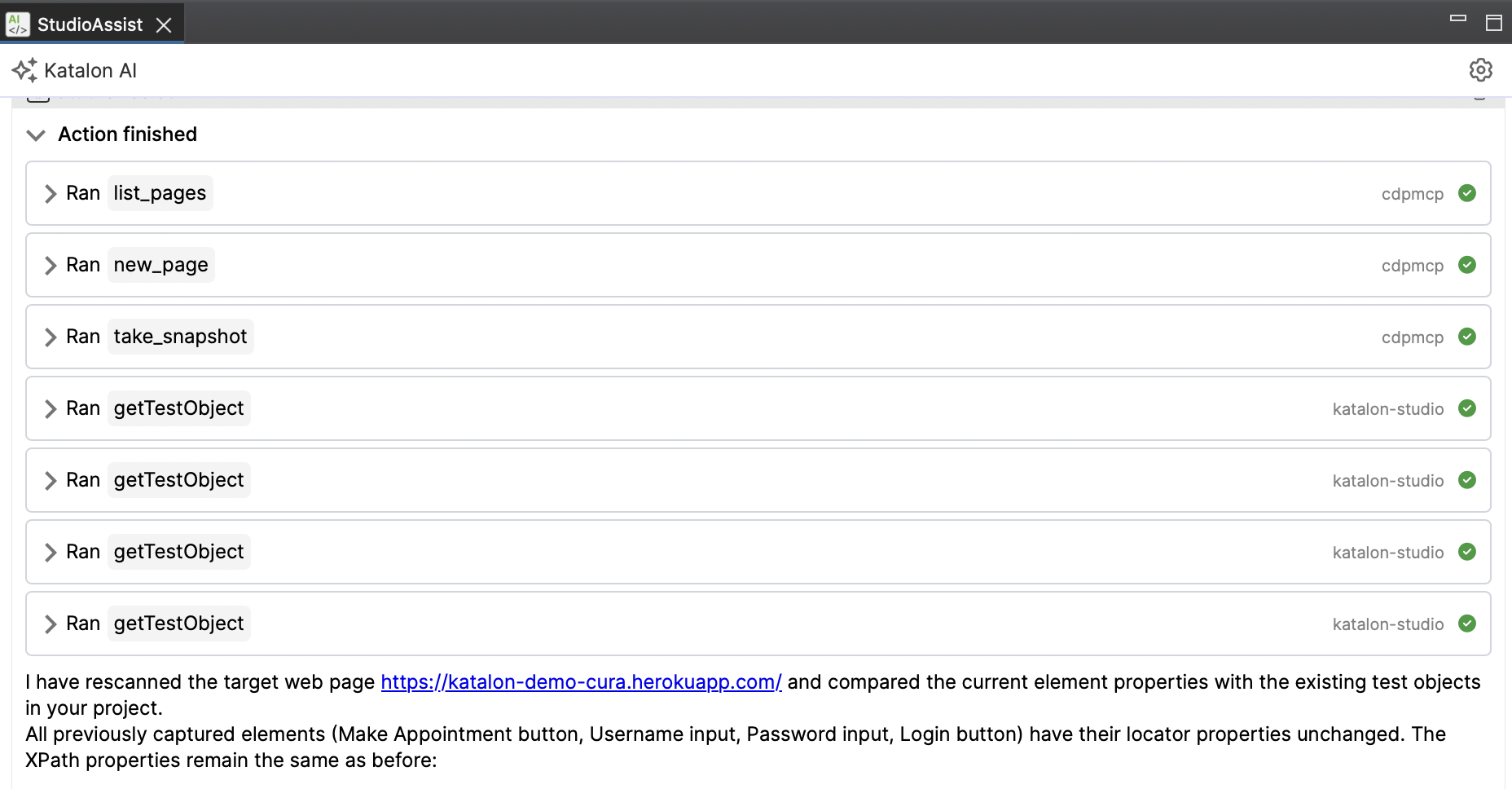
Step 1: Rescan elements to detect locator changes
Detect changed elements using MCP server.
You can try the prompt below:
Using the Chrome DevTools MCP, rescan the target web page to detect any changes in the locators of previously captured elements.

Compare current element properties (XPath, CSS selectors, ID) with existing test objects in the project.

Capture snapshots for elements that have changed to record the new page state.

Print a list of elements whose locators have changed along with old and new values.
Target URL: [https://katalon-demo-cura.herokuapp.com/]
Step 2: Update test objects
Update the changed Test Object locators using StudioAssist.
You can try the prompt below:
Using StudioAssist in Katalon Studio, update the affected Web Test Objects based on the new locators detected
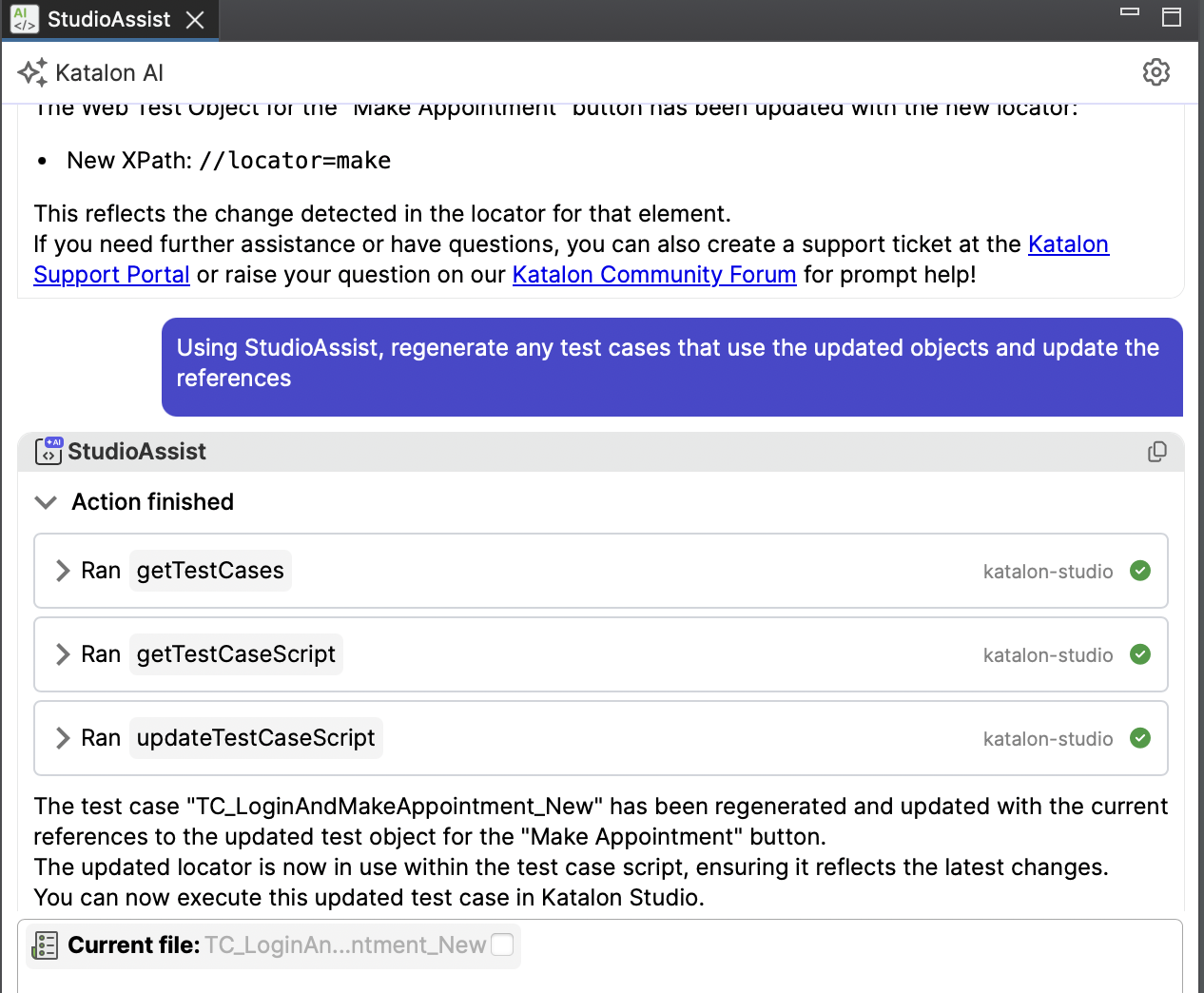
Step 3: Regenerate and validate affected test cases
Regenerate test cases using updated objects.
Using StudioAssist, regenerate any test cases that use the updated objects and update the references
Chrome DevTool MCP tools
You can find the official documentation on Chrome DevTools' available MCP tools and descriptions at Tool Reference.
Conclusion
Using the Chrome DevTools MCP Server with the StudioAssist Agent mode significantly streamlines both the object identification and test case creation processes in Katalon Studio. It enables users to build and maintain their Object Repository more efficiently through guided prompts, automated element capture, and structured test generation, resulting in faster test development and improved maintainability.
See all best practice documents at Katalon products best practices.