KSE – Seat-Based License Reports
This guide explains how to use Katalon Studio Enterprise (KSE) seat-based license reports in Katalon TestOps. These reports help you monitor license allocation, activation, usage, and session activity across your Account or Organization, enabling data-driven license management and optimization.
You must be assigned the Account Admin role to access the reports described below.
Overview
Katalon TestOps provides four primary seat-based KSE reports:
- License Assignment and Activation History – High-level trends over time
- License Assignment Details – User-level assignment and activity data
- License Usage – Usage patterns and engagement trends
- User Sessions – Session-level visibility into active and historical usage
Each report serves a different purpose, from strategic planning to operational monitoring.
KSE – License Assignment and Activation History
The License Assignment and Activation History chart gives you a consolidated, time-based view of how KSE licenses are purchased, assigned, and activated across your Account or Organization. This report is ideal for tracking growth, adoption, and overall license utilization efficiency.
Use Cases
This report helps you:
- Identify gaps between purchased and assigned licenses
- Detect underutilized licenses (assigned but not activated)
- Spot peak demand periods that may require additional licenses
Interactive tooltips reveal detailed values for each metric at specific points in time, making it easy to explore trends without changing views.
How to View the Report
-
Go to Admin Settings > Account > License Utilization (accessible from the cog icon in the upper-right corner).
-
Select KSE – License Assignment and Activation History.
The chart tracks three core metrics within the selected timeframe:
- Purchased: Total licenses allocated to the selected organization. At the Account level, this reflects all purchased licenses.
- Assigned: Total licenses assigned to users within the selected parent organization and all of its child organizations.
- Activated: Total number of users who actively engaged with KSE during the selected period, based on login events or usage triggers.
noteIf multiple license purchases or reassignments occur within the selected timeframe, only the latest record is displayed.
-
(Optional) Apply filters to refine your analysis.
-
(Optional) Hover over the chart to view detailed data points.
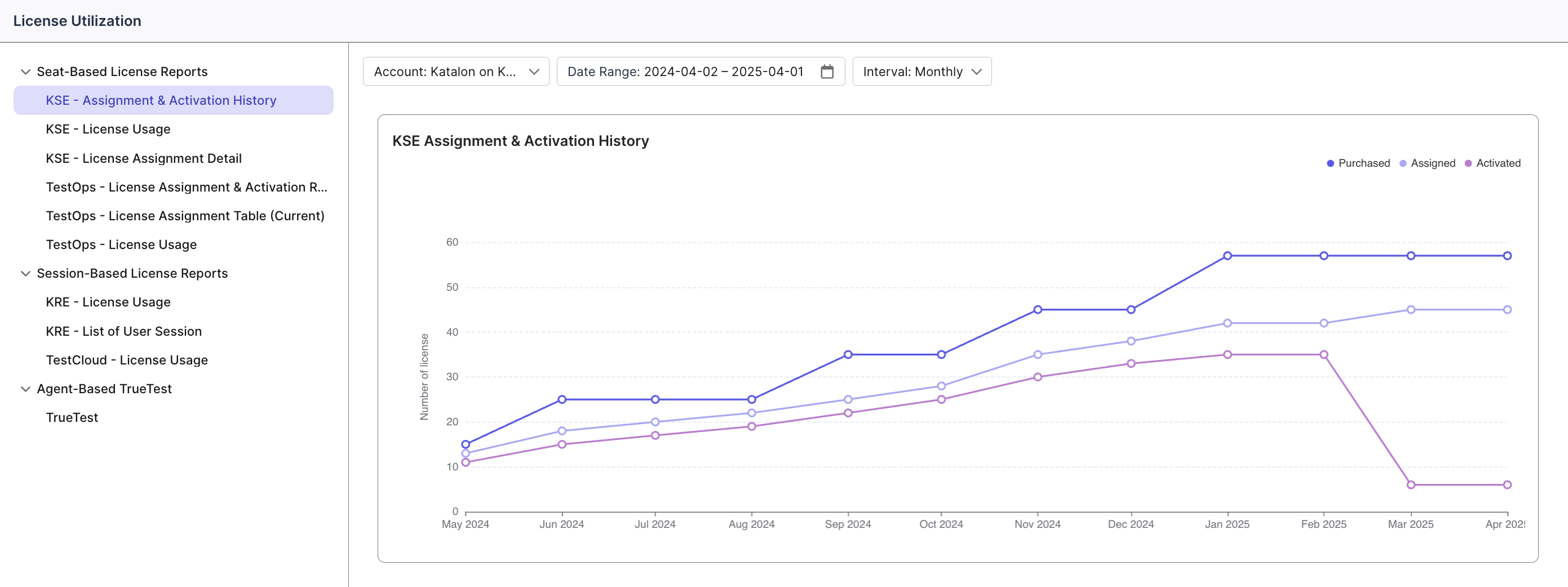
- User Activation counts users who have logged in at least once after license assignment. Once activated, users remain counted in all subsequent periods until the license is revoked or reassigned.
- When a user is unassigned from a license, both assignment and activation counts are reset.
KSE – License Assignment Details
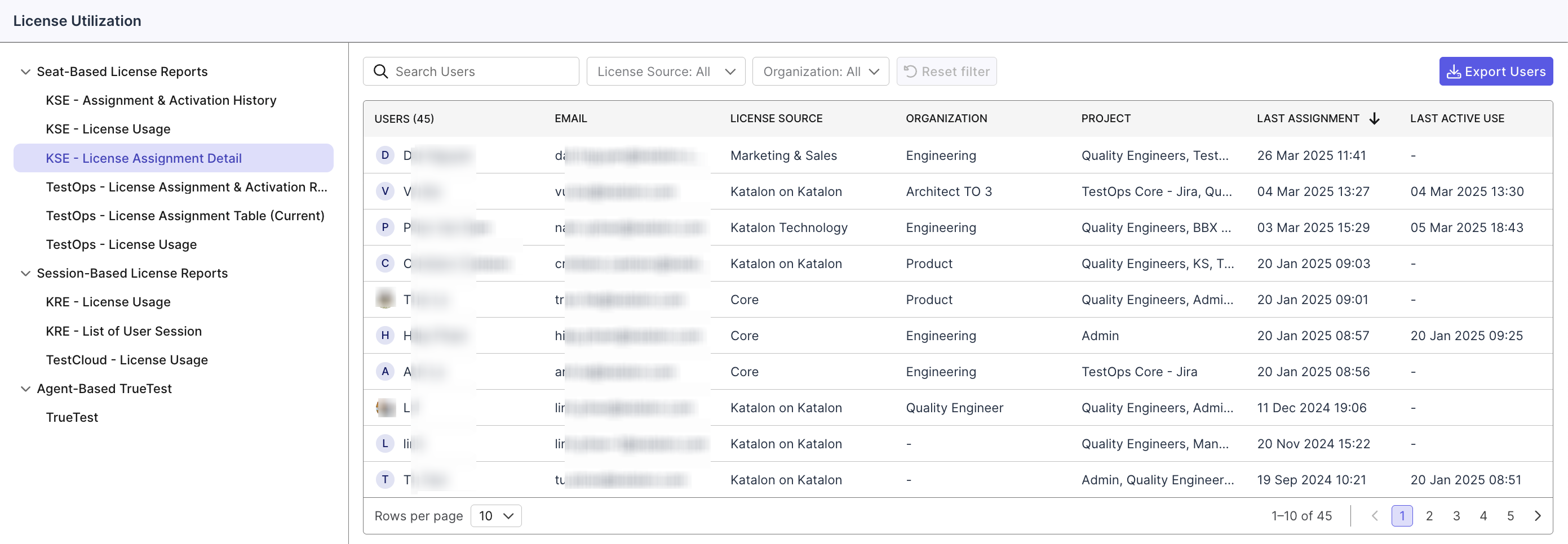
The License Assignment Details report provides a granular, user-level view of license allocation and activity. This table is especially useful for identifying inactive users, validating license usage, and ensuring cost-effective allocation.
Use Cases
With this report, you can:
-
Monitor individual licenses: View assignment dates, activation status, and license sources for each user.
-
Apply advanced filters: Filter by Organization, license source, user name, or email.
-
Export data: Download filtered results as a CSV file for offline analysis or reporting.
This level of detail helps you identify underused licenses and optimize distribution based on actual user behavior.
How to View the Report
- Go to Admin Settings > Account > License Utilization.
- Select KSE – License Assignment Details.
- User: Full name of the user
- Email: User’s email address
- License Source: Organization or account where the license originates
- Organization: Organization hierarchy the user belongs to
- TestOps Project: Associated TestOps project
- Last Assignment: Most recent license assignment date
- Last Active Use: Most recent date the license was actively used
- (Optional) Apply filters or click Reset Filters to return to the default view.
- (Optional) Click Export to download the data as a CSV file.
- (Optional) Click a user name to open their User Detail Page.
KSE – License Usage
The License Usage chart visualizes how KSE licenses are actually used over time. It complements assignment data by highlighting real engagement and activity trends.
Use Cases
This report helps you to:
- Visualize license assignment and usage trends over time
- Compare license utilization across teams or organizational units
- Identify underutilized licenses, peak usage periods, and low-engagement groups
- Detect gaps between allocated licenses and actual demand
- Assess adoption patterns to support informed license planning and purchasing decisions
How to View the Report
- Go to Admin Settings > Account > License Utilization.
- Select KSE – License Usage.
- (Optional) Apply filters to focus on specific data.
- (Optional) Hover over the chart to inspect detailed metrics.
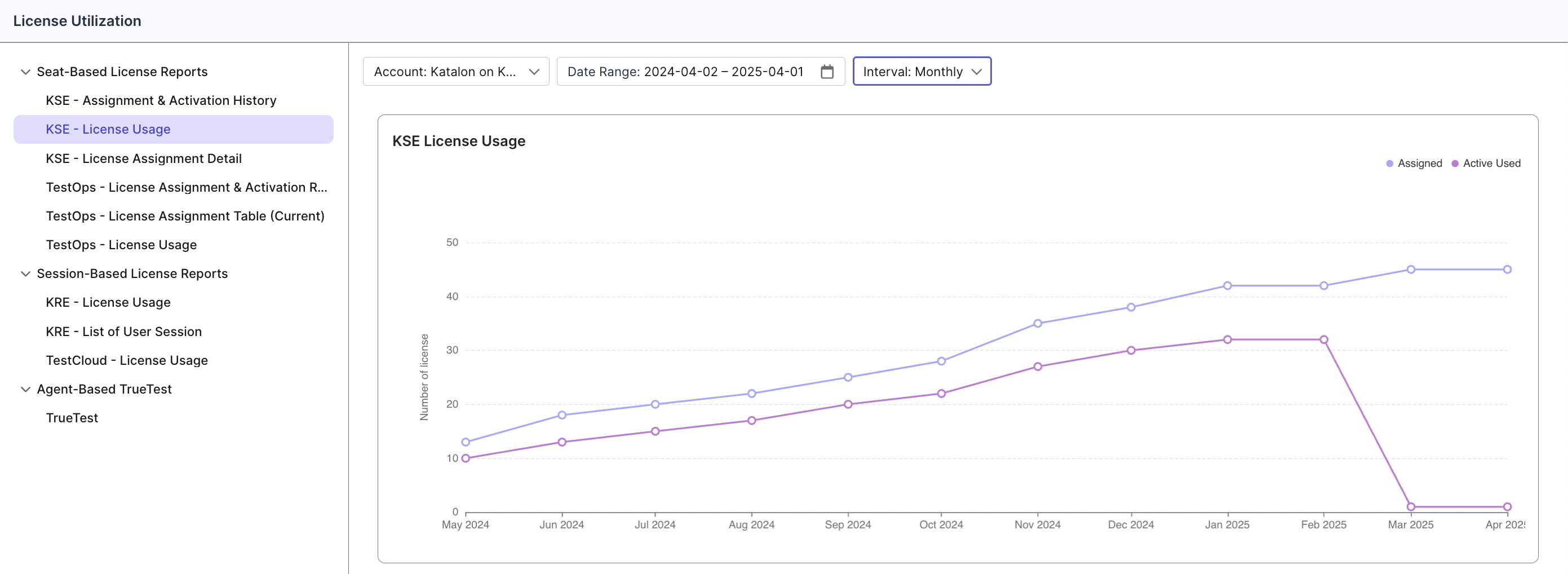
- Activity count represents unique users performing any system action within a 24-hour period. Each user is counted once per day, and all counts reset at midnight.
KSE – User Sessions
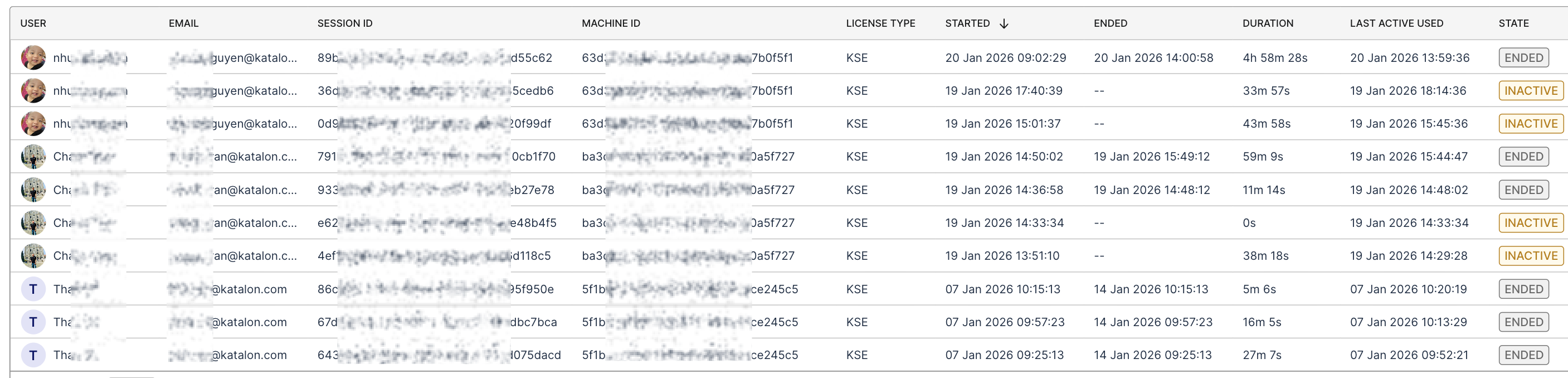
The User Sessions report provides a session-level log of KSE usage, showing exactly who is using a license, on which machine, and for how long. This report is ideal for real-time monitoring and detailed audits.
Use Cases
You can use it to:
- Review active and historical sessions, including user, email, session ID, machine ID, license type, start time, end time, last active time, session state, and duration.
- Search and filter sessions by user, session ID, machine ID, or date range.
- Monitor session states (Active, Inactive, Ended) to understand current license consumption and identify sessions approaching automatic termination.
- Track session activity patterns and identify long-running sessions with the updated duration calculation that reflects actual active usage time.
When combined with Assignment and Usage reports, this table completes the full picture of license allocation, activation, and actual usage.
How to View the Report
- Go to Admin Settings > Account > License Utilization.
- Under Seat-Based License Reports, select KSE – User Sessions.
- (Optional) Use the search bar to find a specific user, session ID, or machine ID.
- (Optional) Adjust the date range based on the session Started date.
- (Optional) Click Export to download the filtered results as a CSV file.
Understanding Session States
Sessions move through different states based on activity:
- Active: The session is currently in use and receiving activity signals.
- Inactive: No activity has been detected for 5 minutes. The session remains open and can return to Active if activity resumes within 7 days.
- Ended: The session has been closed, either explicitly by the user, automatically after 7 days from the start time, or by system enforcement.
Understanding Duration Calculation
Duration represents the total time a session was actively used, calculated differently based on the session state:
- Session Active/ Inactive state: Duration = Last Active Used - Started (continuously updates as activity occurs)
- Session Ended state: Duration = Ended - Started (finalized and will not change)
This ensures duration accurately reflects actual active usage time rather than total elapsed time.
Report Columns
- Session ID: A unique identifier for each KSE session. Use this to track specific sessions across filters and exports.
- Machine ID: A unique identifier for the device where the session is running. This helps you identify which machines are consuming licenses.
- Started: The date and time when the session started (DD MMM YYYY HH:mm:ss, displayed in your timezone)
- Ended: The date and time when the session ended (DD MMM YYYY HH:mm:ss, displayed in your timezone). Empty (—) for Active or Inactive sessions.
- Duration: Total time the session was actively used (formats: 45s, 5m, 15m 30s, 1h 05m, 1h 05m 15s)
- Last Active Used: The last time, the system has recorded, this session was actively used (DD MMM YYYY HH:mm:ss, displayed in your timezone)
- State: Current status of the session: Active, Inactive, or Ended
Note: Sessions are automatically ended after 7 days from the Started time to prevent indefinite license consumption.